Are there unlinked elements in the project?
Find elements with no detected links and check whether they are used.
TypeScript · React · Next.js · In-browser analysis
Open a GitHub repository and choose a branch and folder containing source code. The service builds an interactive graph of imports between TypeScript (.ts) and TSX (.tsx) files right in your browser.
Understand the project structure faster, inspect module relationships, and assess the impact of changes before refactoring.
Public and private repositories · Source code is analyzed in your browser, not sent to the application server
You don't need to sign in to GitHub for a public repository.
Why it exists
In a large TypeScript project, it can be hard to see how files, components, types, and functions relate to one another. The import graph shows detected dependencies and helps you assess what a module change might affect. Start with one folder, then add the elements and links you need to the canvas.
Find elements with no detected links and check whether they are used.
Inspect a module's incoming and outgoing links before refactoring.
Trace imports in the graph and the list of related elements.
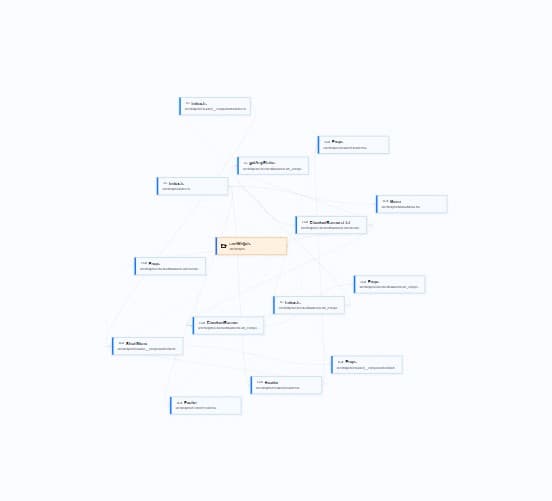
After you open a project, your browser builds a map of imports between TypeScript (.ts) and TSX (.tsx) files. Choose folders, layers, and elements, hide unnecessary links, and follow dependencies. A layer groups elements from a selected folder on the graph. This makes it easier to see where an import comes from and which parts of the project use a selected component.
How it works
Enter a public repository URL or connect GitHub for private access.

Features
Open a public GitHub repository without signing in. Use GitHub OAuth to choose a private one.
Customize the graph: a layer shows elements from a selected folder, while a source is an individual element you add to the canvas.
Source files load from GitHub into your browser, where the dependency graph is built. They are not sent to the application server for analysis or stored in its database.
Get started without a subscription or payment card. GitHub API limits and repository access rules may apply.
Explore links between files and elements in a TypeScript project, follow imports, and find related code.
Find files and elements with no detected imports or related dependencies in the selected code.
Analyzed source files: TypeScript (.ts) and TSX (.tsx).
The service analyzes TypeScript (.ts) and TSX (.tsx) files in the selected folder of a GitHub repository. It works with React and Next.js projects, as well as other TypeScript codebases: no particular framework is required.
JavaScript (.js, .jsx), HTML (.html), and JSON (.json) files are not currently analyzed. You can exclude build output, dependencies, and generated folders before building the graph. It shows detected static links in the selected source code; a missing link does not prove that a file or component is unused.
Security
You can open a public repository without signing in. Private repositories require GitHub OAuth. Your browser loads the selected source files from GitHub and builds the graph locally. The application server exchanges an authorization code for a token, but does not receive project files for analysis.
The import graph and analysis are built in your browser
Source files are not sent to the application server or stored in its database
Reloading removes selected source files from the tab's memory
Reloading clears the loaded graph and authorization
GitHub OAuth is used to access private repositories
Selected source files load directly from GitHub into your browser
Check data transfers
FAQ
It's an interactive map of detected static links between files, modules, and elements in the selected TypeScript code. It helps you see which parts of a project are connected.
No. The tool runs in your browser. Open the page, enter a GitHub repository, then choose a branch and a folder containing .ts or .tsx files.
No source files are sent there for analysis. Your browser loads the selected code from GitHub and builds the graph locally. The server participates in OAuth authorization for private repositories.
Sign in with GitHub OAuth, choose a private repository you can access, then select a branch and folder. Load the TypeScript or TSX files to build the graph.
You don't need a subscription or payment card to get started. GitHub API request limits and account or repository access settings may still apply.
The loaded graph, selected elements, and authorization token are cleared from the tab's memory. To analyze the project again, choose its repository, branch, and source folder.
The service analyzes TypeScript .ts and TSX .tsx files in the selected repository folder. It does not currently analyze .js, .jsx, .html, or .json files.
Open DevTools → Network and inspect the requests after choosing a repository. Source files load from GitHub into your browser. The application server handles OAuth authorization but does not receive project file contents.
How to use it
After loading a project, choose Export to download a JSON file with layers, sources, visibility, and filters. To restore it, load the same repository, branch, and root folder, choose Import, select the file, and confirm replacement. Source code is not included in the file.
In the left panel, open Layers, choose a folder, and select Show. The number beside a path is its model count. Use the eye icon to hide or show a layer without removing it; the cross removes it from the canvas.
In the left panel, open Sources, choose a component, and select Show. The component appears on the canvas as a separate source. Its eye icon controls visibility.
Checkboxes above the canvas show or hide sources, layers, .tsx files, and .ts files with their links; they do not change eye-icon settings. Show unlinked sources highlights elements with no detected links. When a component is selected, separate sidebar checkboxes filter only its dependency list, not the canvas.
Enter a name or path in Find a component above the canvas. Matches are highlighted on the graph while other models stay in place. Clear the search field to remove the highlight.
Select a component on the canvas or in a layer list. In its card, open the folder selector: the green plus adds a folder to Layers and the red minus removes it. Add to sources shows the selected component as a source; Remove from sources reverses this. The plus and minus beside dependencies manage related components the same way.
A TypeScript dependency graph lets you see an application as more than a list of folders and files. It maps detected links between modules, showing which files import one another, what relates to a selected component, and where changing one module may affect other parts of the project. This is useful when exploring an unfamiliar GitHub repository, preparing a refactor, or reviewing architectural decisions.
The service builds an interactive import graph for TypeScript .ts and TSX .tsx files. Choose a GitHub repository, branch, and source folder, then add the layers, elements, and links you need to the canvas. You can hide distractions, follow import chains, find related modules, and spot parts of the selected code with no detected dependencies.
The tool works with React, Next.js, and other TypeScript projects. It does not depend on a particular framework: what matters is that the code uses .ts or .tsx files. You can explore public repositories without signing in to GitHub; private ones require GitHub OAuth. Source files load from GitHub into your browser, where the dependency graph is built.
Use the import graph to understand an application faster, plan changes, and discuss its structure with your team. Open a TypeScript project from GitHub and start exploring its architecture in your browser.
Open a GitHub repository, choose a folder with .ts and .tsx files, and explore imports, related modules, and code structure. Get started free, without a subscription or sending source files to the application server.
Build a dependency graphNo sign-in is needed to analyze a public GitHub repository.